Three years ago, I spoke about CI/CD for Power BI projects at the Power BI Summit. Afterwards, I was asked whether it would also be possible to automatically deploy projects using PowerShell, for example via Azure DevOps or GitHub, without Fabric. I was quite optimistic that this would be available soon. Unfortunately, that did not seem to be the case…
However, good news: this is now possible:
https://learn.microsoft.com/en-us/rest/api/fabric/articles/get-started/deploy-project
The good thing is that no Fabric capacity is required for this. It also works with a standard Pro license. However, it is recommended to have a Service Principal. Otherwise, you would need to log in manually multiple times, which is not recommended. I described how this works in the following post:
https://www.flip-design.de/?p=1578
I would like to explain how this works here. First, I installed the latest Power BI Management cmdlets. The current version is 1.3.83. If you install them via PowerShell, the latest version is automatically installed. Additionally, version Az.Accounts 5.3.3 (or newer) is required.
You will also need the following packages:
"MSAL.PS\msal.ps.4.37.0.nupkg",
"AzAccounts\az.accounts.5.3.3.nupkg",
"fabtools\fabtools.0.7.0.4.nupkg",
"fabric\az.fabric.1.0.0.nupkg",
"AzResources\az.resources.9.0.0.nupkg"
After that, everything is up to date. I then created a simple Power BI project as well as a workspace where my Service Principal has admin permissions.
Next, I stored the following PowerShell script locally – next to the folder where my project is located – as well as the PowerShell script from the Microsoft link above.
$ErrorActionPreference = "Stop"

$modulePath = "C:\temp\FabricPS-PBIP\FabricPS-PBIP.psd1"
$pbipPath   = "C:\temp\test"
$wsName     = "PowerBIServiceAccount"

$tenantId     = ""
$clientId     = "”
$clientSecret = ""

if (-not (Test-Path $modulePath)) {
   throw "FabricPS-PBIP Modul nicht gefunden: $modulePath"
}

if (-not (Test-Path $pbipPath)) {
    throw "PBIP-Pfad nicht gefunden: $pbipPath"
}

Import-Module MicrosoftPowerBIMgmt.Profile -Force
Import-Module MicrosoftPowerBIMgmt.Workspaces -Force
Import-Module $modulePath -Force

$secureSecret = ConvertTo-SecureString $clientSecret -AsPlainText -Force
$credential   = [System.Management.Automation.PSCredential]::new($clientId, $secureSecret)

Connect-PowerBIServiceAccount -ServicePrincipal -Tenant $tenantId -Credential $credential

$null = Get-PowerBIAccessToken

$ws = Get-PowerBIWorkspace -Name $wsName -ErrorAction Stop
if (-not $ws -or -not $ws.Id) {
    throw "Workspace '$wsName' wurde nicht gefunden oder hat keine Id."
}

$wsId = $ws.Id

Set-FabricAuthToken -servicePrincipalId $clientId -servicePrincipalSecret $clientSecret -tenantId $tenantId -reset

Import-FabricItems -workspaceId $wsId -path $pbipPath
The script shown above can now be executed with standard user permissions.
It is important that all installations and executions are performed using PowerShell 7.
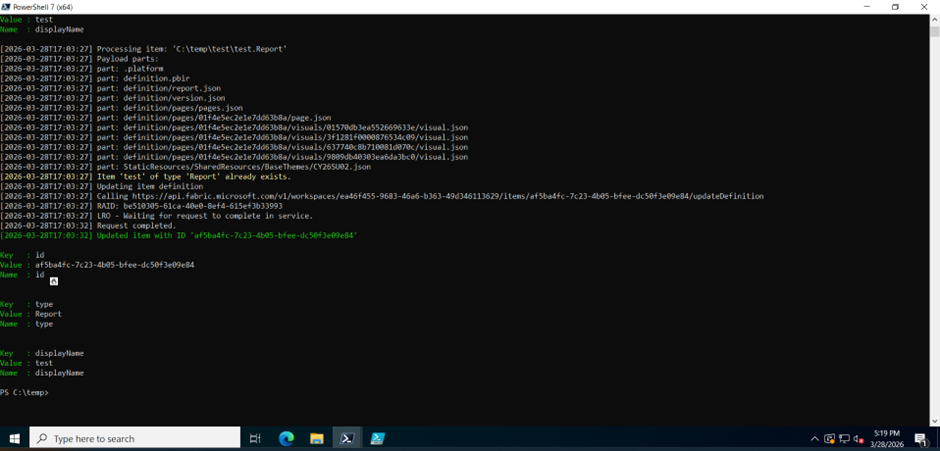
Before:
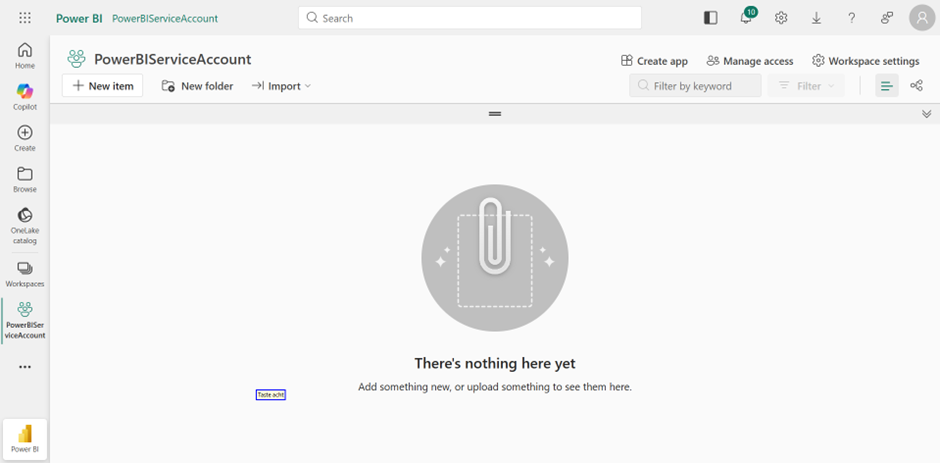
After:
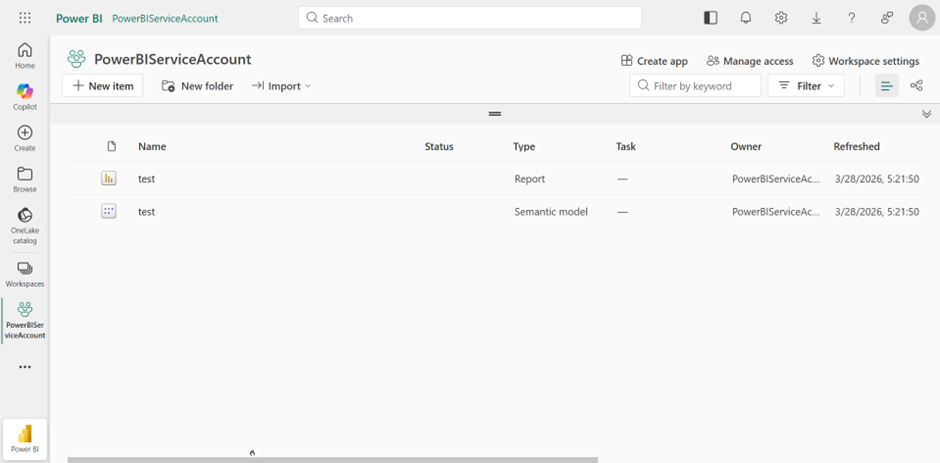
Conclusion:
This is an excellent way to implement CI/CD pipelines for Power BI projects using PowerShell.