I would like to continue this series of articles (https://www.flip-design.de/?p=1563). In my opinion, interactive authentication within PowerShell cmdlets is not suitable for automated processes such as CI/CD pipelines. Instead, automated authentication without user interaction is required.
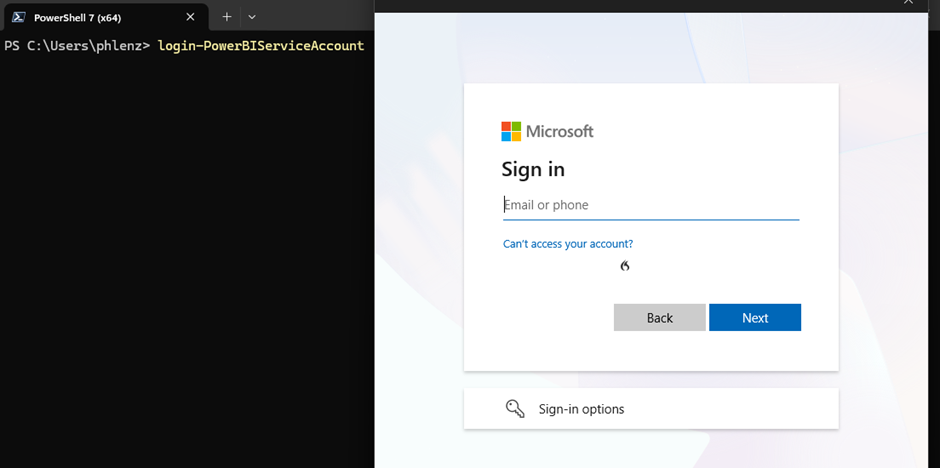
Therefore, it is advisable to create an Azure application that can authenticate automatically and has the necessary permissions within Power BI. In this article, I will demonstrate how to create such an application.
The application is created within Azure:
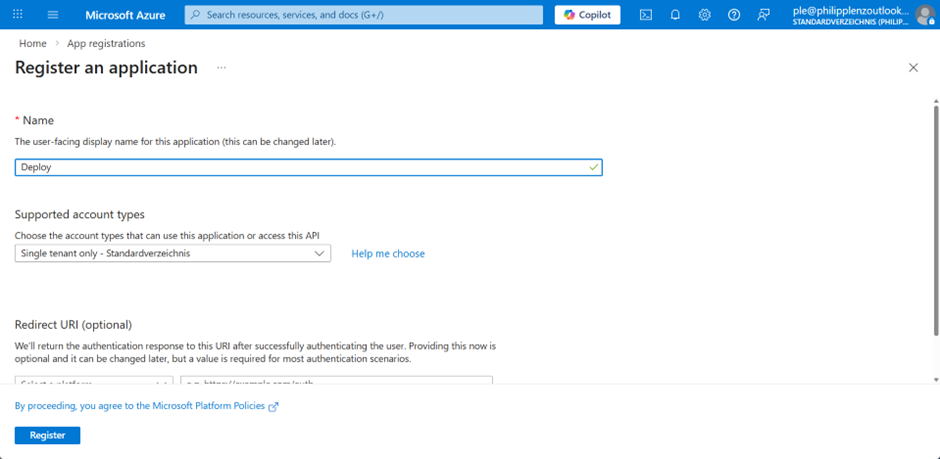
After it has been created, it can be assigned as an admin within the workspace in Power BI.
In order for these service principals to be used at all, this feature must be enabled in the Admin portal.
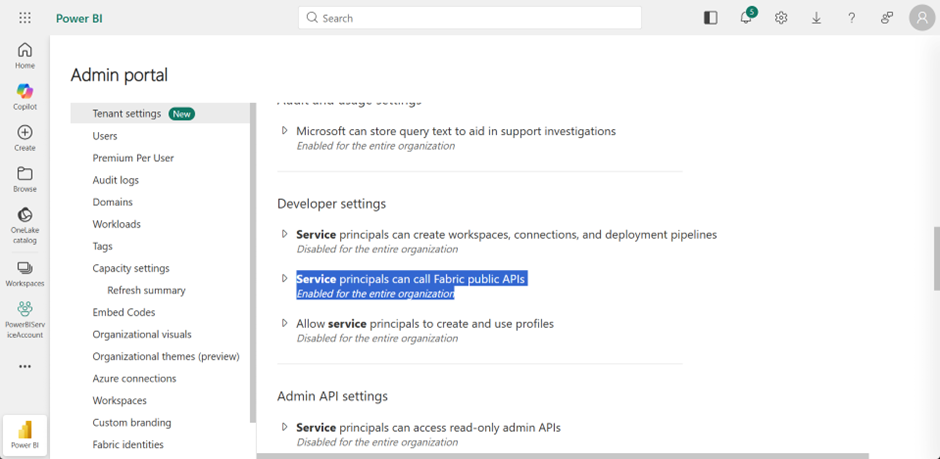
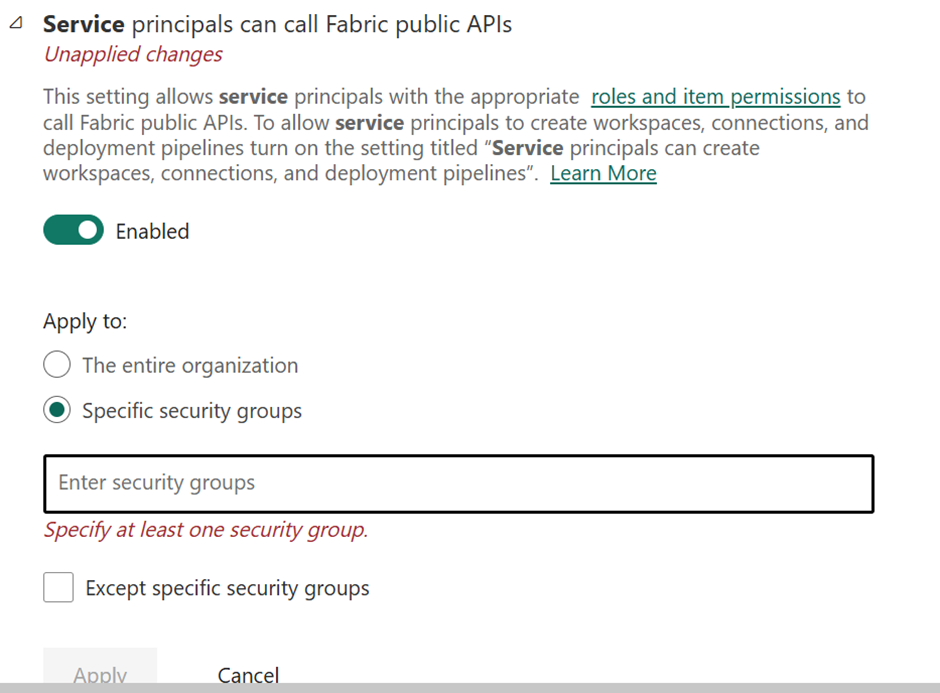
Of course, you also have the option to include these accounts in groups and restrict their use to Power BI only. In my opinion, this is very necessary and highly recommended.
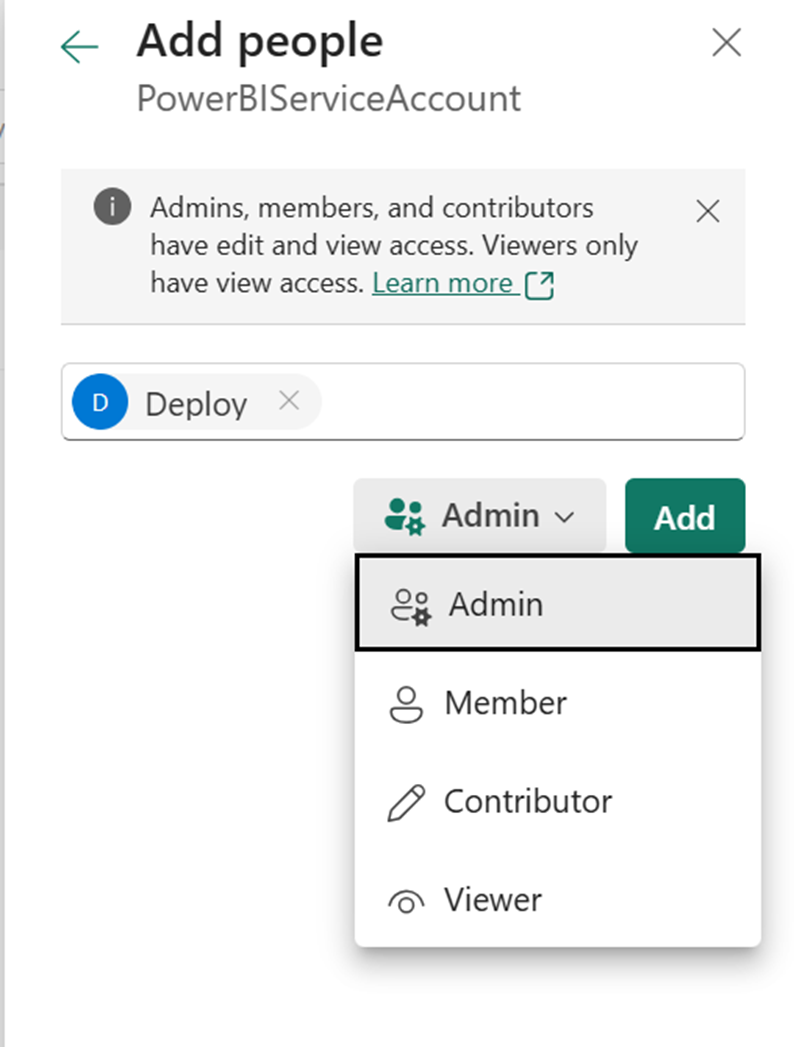
The Admin permission is usually required if this application is intended to perform administrative tasks.
After that, the application needs a secret, which is required for authentication. Since this secret expires regularly after the defined period, it must be renewed periodically. It is therefore recommended to simply create a calendar reminder for this 😉
Permissions within the Azure application itself are not required for deployments or for updating parameters (see below).
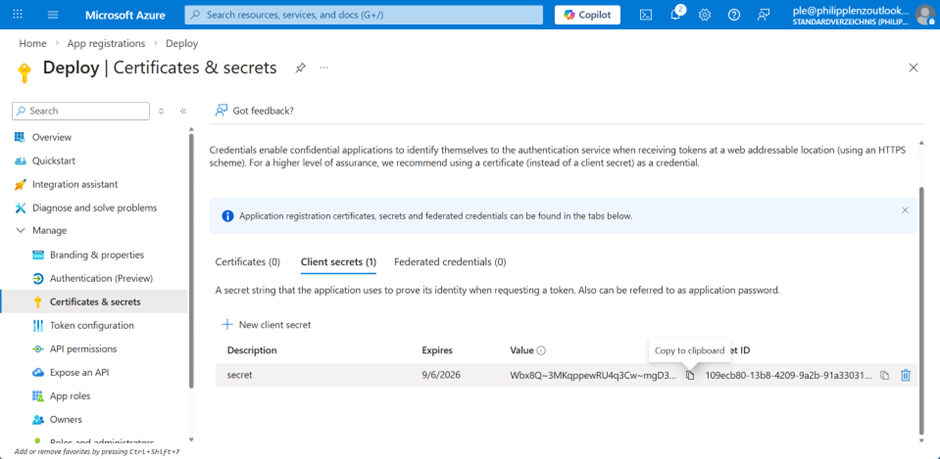
It is important to copy the key after it has been generated, as it cannot be accessed again afterward.
The following permissions should preferably be assigned to the application. Although this is not strictly required, they may be needed later on. It is important to perform a consent afterward.
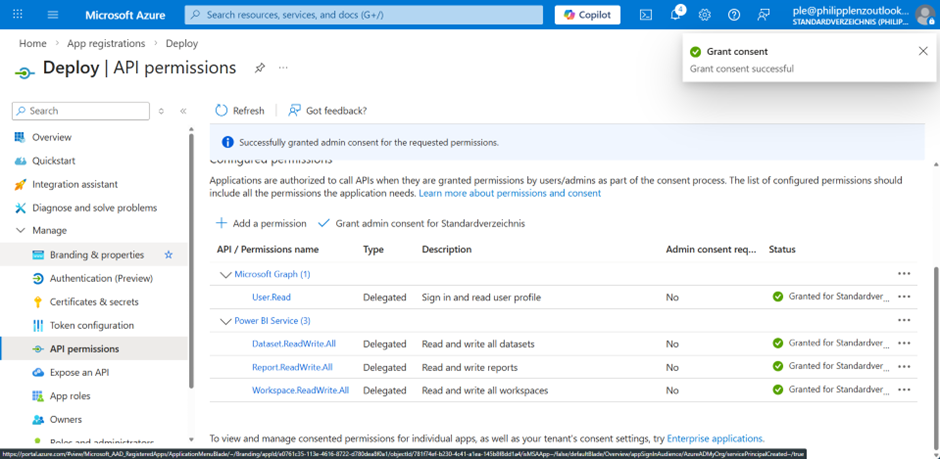
This can now be used within PowerShell:
# Parameters from your Azure App Registration
$tenantId     = "xxxxxxxx-xxxx-xxxx-xxxx-xxxxxxxxxxxx"
$clientId     = "yyyyyyyy-yyyy-yyyy-yyyy-yyyyyyyyyyyy"
$clientSecret = "YOUR_CLIENT_SECRET"

# Convert the client secret to a secure string
$secureSecret = ConvertTo-SecureString $clientSecret -AsPlainText -Force

# Create a credential object
# Username = Client ID of the App Registration
# Password = Client Secret
$credential = New-Object System.Management.Automation.PSCredential($clientId, $secureSecret)

# Authenticate to Power BI using the Service Principal
Connect-PowerBIServiceAccount `
    -ServicePrincipal `
    -Tenant $tenantId `
    -Credential $credential