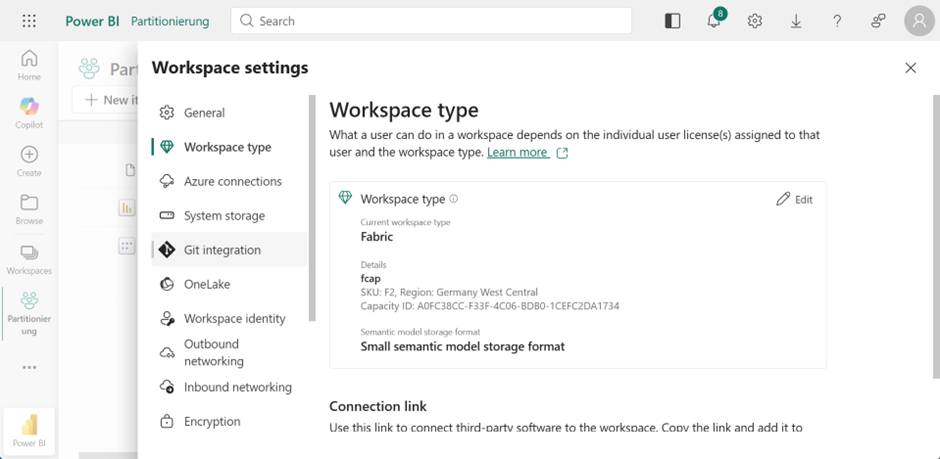
This entire functionality only works with Fabric or Premium. The workspace must be configured accordingly. In the underlying SSAS cube (semantic model), the data is stored in corresponding partitions. The purpose here is not to improve performance, as known from the multidimensional model, but rather to increase the speed of data transfer and data loading.
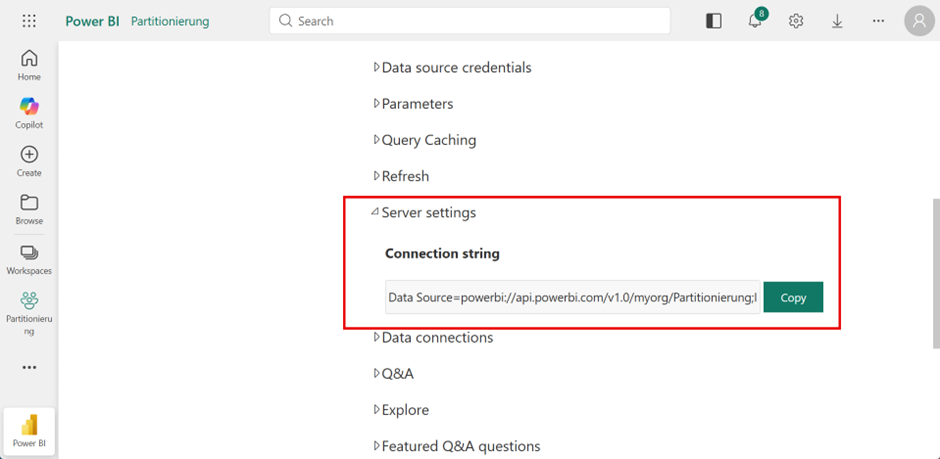
You can then copy the XMLA endpoint from the properties of the semantic model. This requires that the read/write option has been enabled in the admin portal.
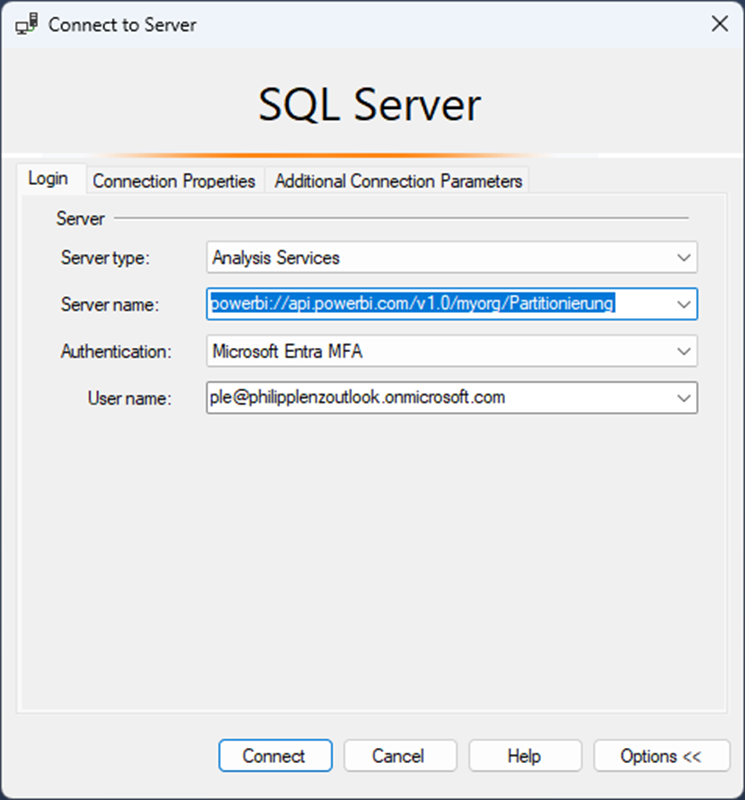
You can now connect to the semantic model in Management Studio using this address.
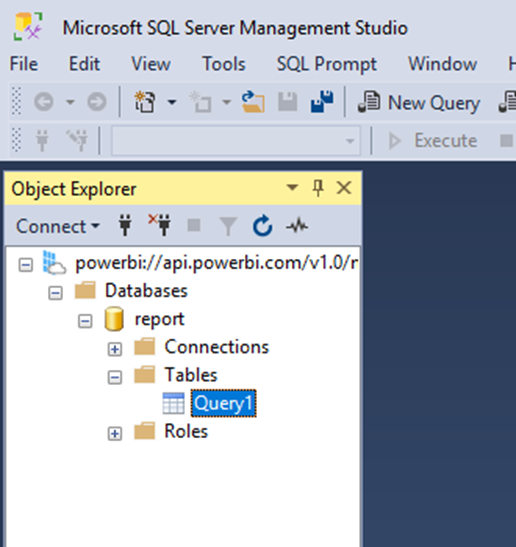
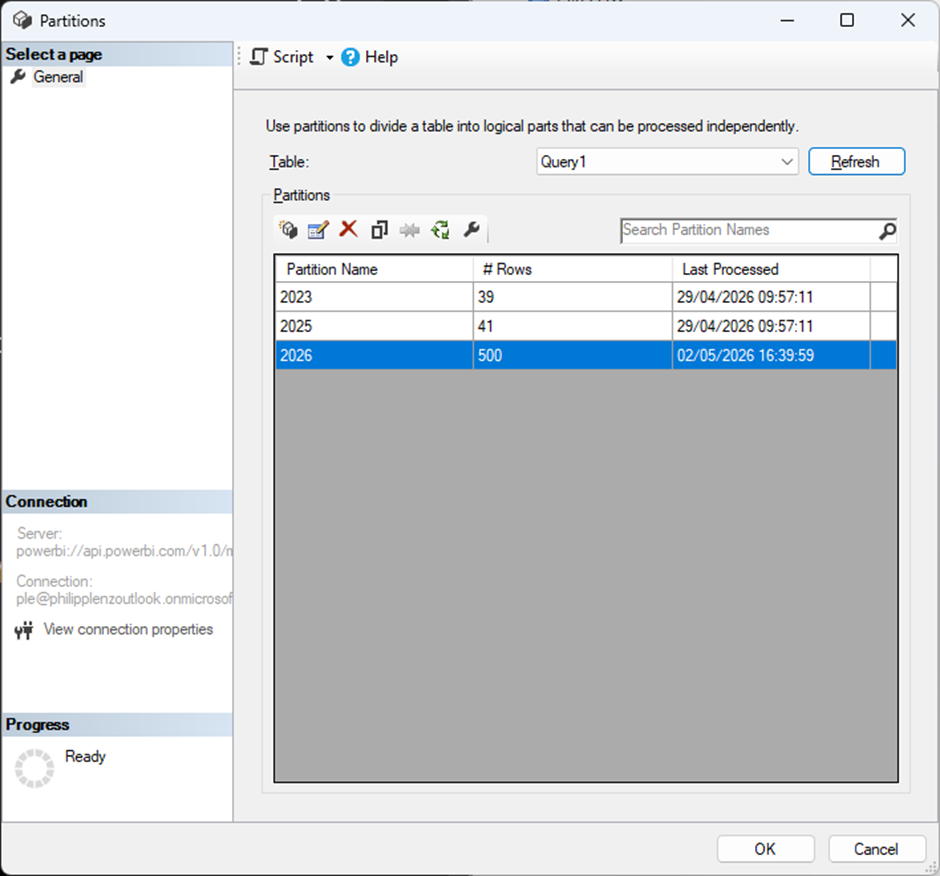
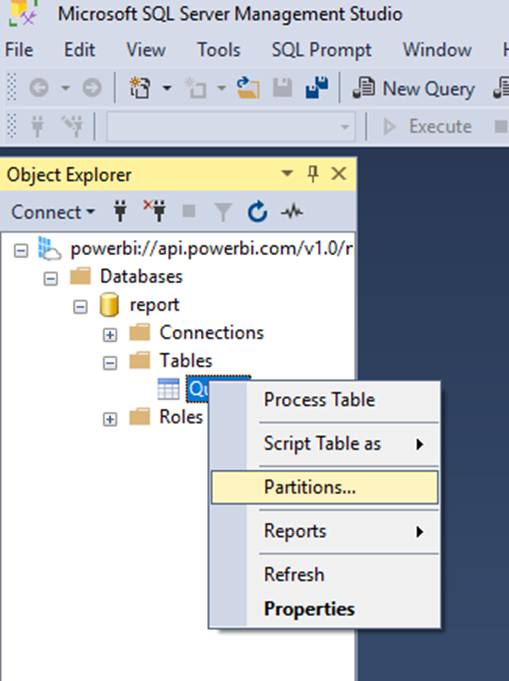
To view or create partitions, you can access this through the properties of the respective table. In this example, I have only one table in my model.
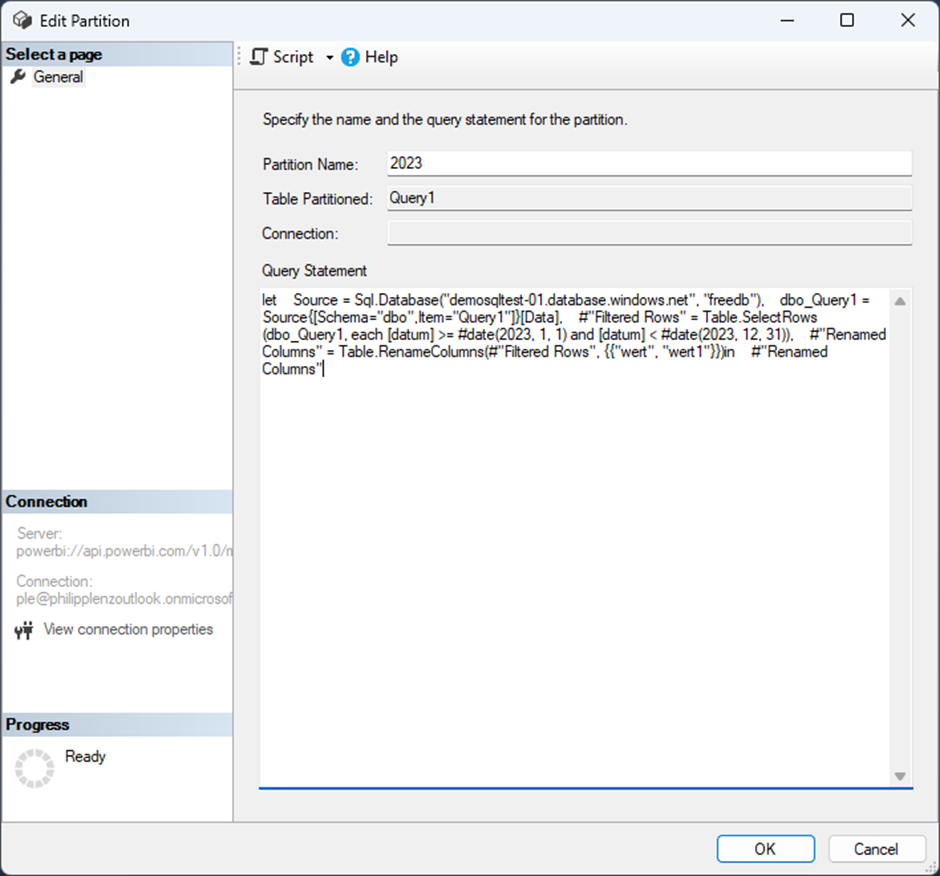
The code used here is simply M code, which can be copied from the Advanced Editor in Power Query. To illustrate this a bit further, an additional line is included that renames a column—nothing more. Otherwise, the code filters the data for a full year in order to create the partition.
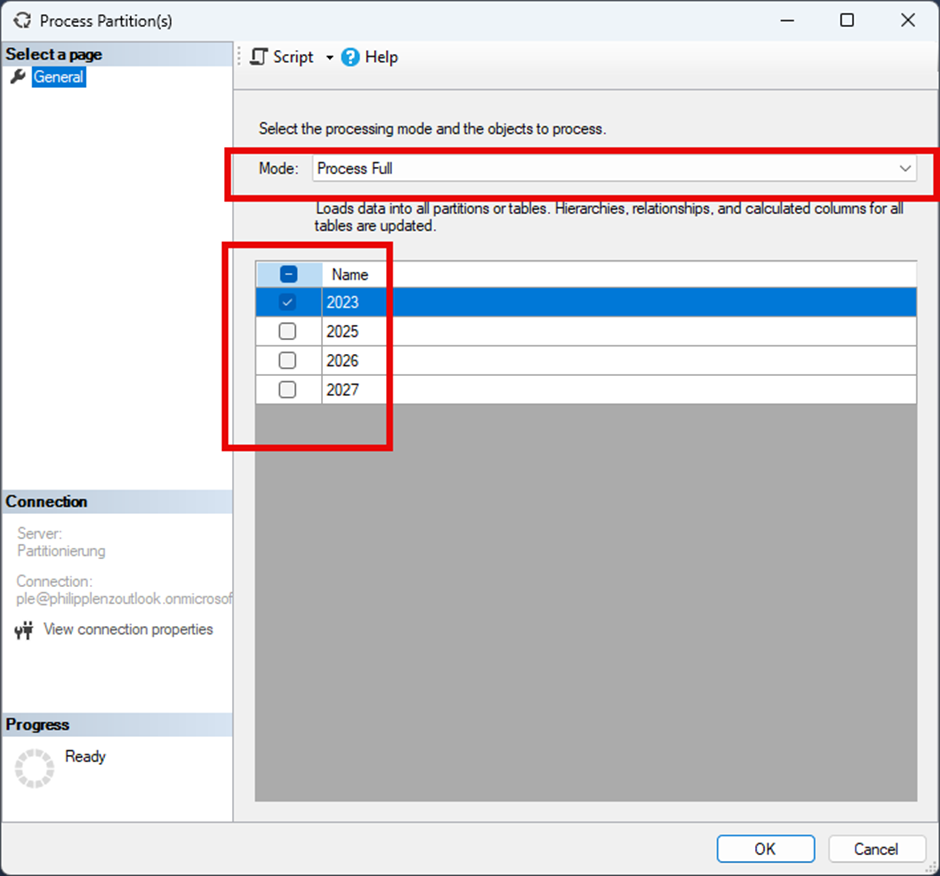
This allows you to create a partition, for example for a specific calendar year. The existing default partition can then be removed. After that, the partitions must be processed; the Full processing option is recommended, as it removes any existing rows beforehand and reloads them. In general, it is important to ensure that query folding is applied when using compatible data sources, so that in this example only the data for the respective calendar year is selected and transferred.
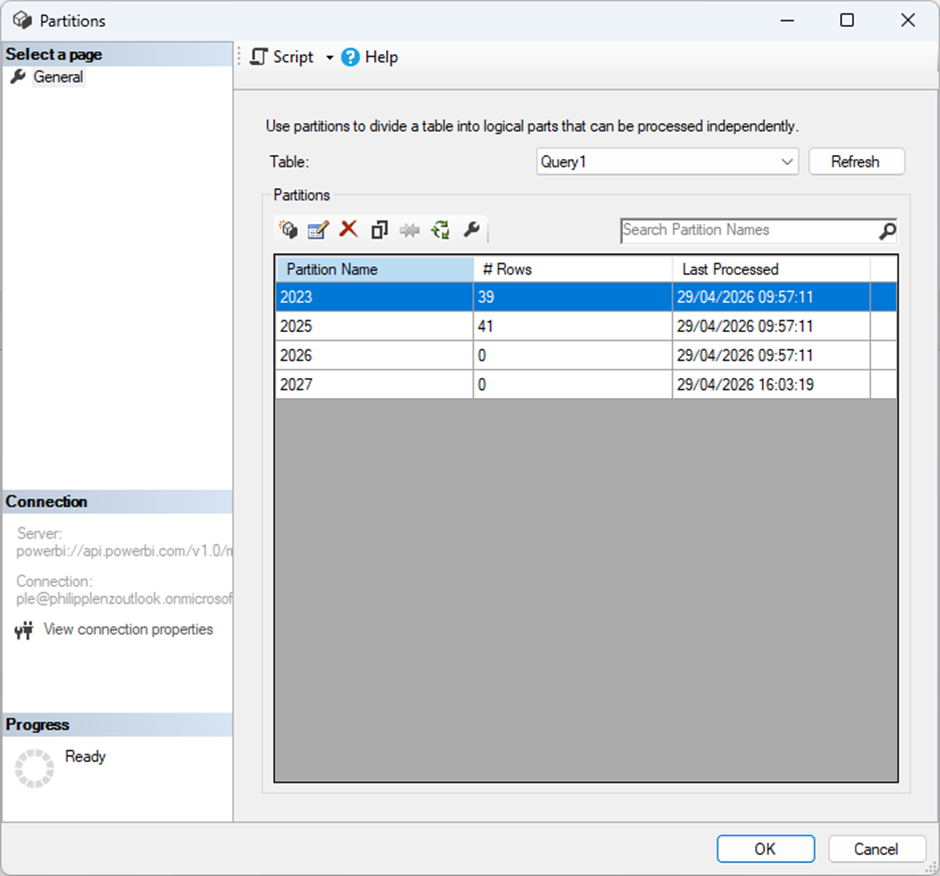
You can then view in the properties how many rows are contained in each partition.
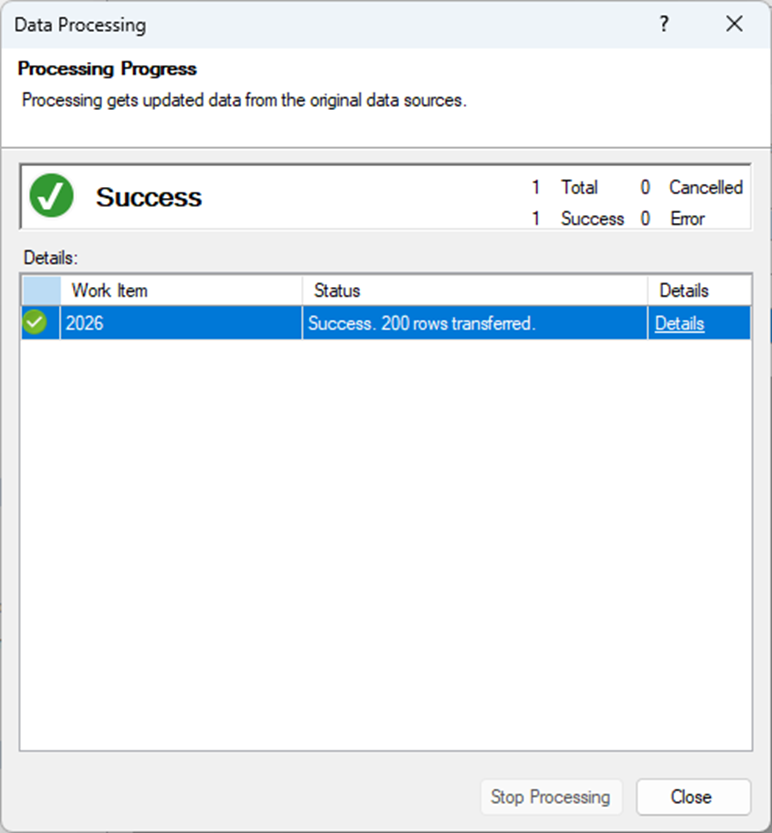
Once a partition has been processed, a corresponding success message can be viewed.
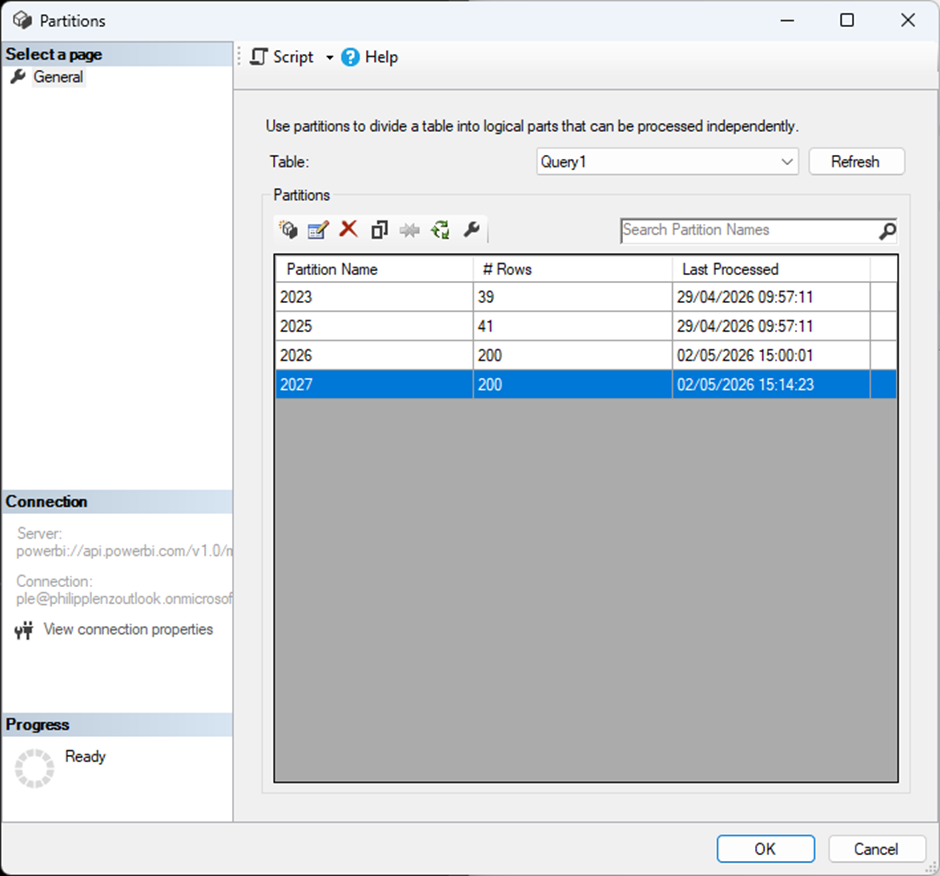
In this example, I also inserted incorrect data for the year 2027 into the database and created a corresponding partition for it.
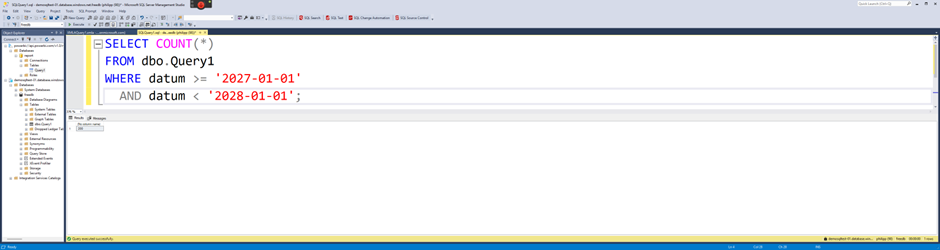
To correct this error, I remove the partition using the following script. Alternatively, the corresponding button can also be used. However, if this process is to be automated, it is advisable to become familiar with JSON.
{
  "delete": {
    "object": {
      "database": "report",
      "table": "Query1",
      "partition": "2027"
    }
  }
}
The data remains available in the source, of course. Therefore, an appropriate data management strategy should be considered.
I have now inserted additional data into the 2026 partition using the following query. This adds 300 more rows.
WITH RandomData AS (
    SELECT TOP 300
        ROW_NUMBER() OVER (ORDER BY (SELECT NULL)) AS rn,
        DATEADD(DAY, ABS(CHECKSUM(NEWID())) % 365, '2026-01-01') AS datum,
        ABS(CHECKSUM(NEWID())) % 200 + 50 AS wert
    FROM sys.objects a
    CROSS JOIN sys.objects b
),
MaxID AS (
    SELECT ISNULL(MAX(id), 0) AS max_id FROM [dbo].[Query1]
)
INSERT INTO [dbo].[Query1] (id, datum, wert)
SELECT
    m.max_id + r.rn AS id,
    r.datum,
    r.wert
FROM RandomData r
CROSS JOIN MaxID m;
To transfer these rows into the partition and automate this process, I use a PowerShell 7 script. Of course, this can also be implemented with PowerShell 5. However, to make the solution future-proof and compatible with Linux, I personally use PowerShell 7 exclusively.
The corresponding code can be found here:
# ============================================
# Power BI XMLA Partition Processing
# PowerShell 7 only
# Uses Power BI access token
# ============================================

$ErrorActionPreference = "Stop"

function Step($Text) {
    Write-Host ""
    Write-Host "=== $Text ===" -ForegroundColor Cyan
}

# --------------------------------------------
# Configuration
# --------------------------------------------

$WorkspaceName = "Partitionierung"
$DatabaseName  = "report"
$TableName     = "Query1"
$PartitionName = "2026"

$ServerName = "powerbi://api.powerbi.com/v1.0/myorg/$WorkspaceName"

# --------------------------------------------
# Load modules
# --------------------------------------------

Step "Loading Power BI module"
Import-Module MicrosoftPowerBIMgmt.Profile

# --------------------------------------------
# Login to Power BI
# --------------------------------------------

Step "Login to Power BI"
#Connect-PowerBIServiceAccount

# --------------------------------------------
# Get Power BI access token
# --------------------------------------------

Step "Getting Power BI access token"

$TokenResponse = Get-PowerBIAccessToken
$AccessTokenString = $TokenResponse.Authorization -replace "^Bearer\s+", ""

# --------------------------------------------
# Load Analysis Services client DLLs
# --------------------------------------------

Step "Loading Analysis Services DLLs"

$PackageIdLower = "microsoft.analysisservices.netcore.retail.amd64"
$PackageRoot    = Join-Path $PSScriptRoot "packages"
$ExtractPath    = Join-Path $PackageRoot $PackageIdLower

if (-not (Test-Path $ExtractPath)) {
    New-Item -ItemType Directory -Path $PackageRoot -Force | Out-Null

    $IndexUrl = "https://api.nuget.org/v3-flatcontainer/$PackageIdLower/index.json"
    $Versions = Invoke-RestMethod -Uri $IndexUrl
    $LatestVersion = $Versions.versions[-1]

    $NupkgUrl  = "https://api.nuget.org/v3-flatcontainer/$PackageIdLower/$LatestVersion/$PackageIdLower.$LatestVersion.nupkg"
    $NupkgFile = Join-Path $PackageRoot "$PackageIdLower.$LatestVersion.nupkg"
    $ZipFile   = Join-Path $PackageRoot "$PackageIdLower.$LatestVersion.zip"

    Invoke-WebRequest -Uri $NupkgUrl -OutFile $NupkgFile
    Copy-Item $NupkgFile $ZipFile -Force
    Expand-Archive -Path $ZipFile -DestinationPath $ExtractPath -Force
}

Get-ChildItem -Path $ExtractPath -Recurse -Filter "*.dll" |
    Where-Object { $_.FullName -notmatch "\\(de|fr|es|it|ja|ko|ru|zh|pt|pl|tr)\\" } |
    ForEach-Object {
        try {
            Add-Type -Path $_.FullName
        }
        catch {}
    }

# --------------------------------------------
# Create Analysis Services access token object
# --------------------------------------------

Step "Creating Analysis Services access token object"

$ExpirationTime = [DateTimeOffset](Get-Date).AddHours(1)

$AmoAccessToken = [Microsoft.AnalysisServices.AccessToken]::new(
    $AccessTokenString,
    $ExpirationTime,
    $null
)

# --------------------------------------------
# TMSL command
# --------------------------------------------

Step "Building TMSL"

$Tmsl = @"
{
  "refresh": {
    "type": "full",
    "objects": [
      {
        "database": "$DatabaseName",
        "table": "$TableName",
        "partition": "$PartitionName"
      }
    ]
  }
}
"@

# --------------------------------------------
# Execute XMLA command
# --------------------------------------------

Step "Connecting to XMLA endpoint"

$Server = New-Object Microsoft.AnalysisServices.Server
$Server.AccessToken = $AmoAccessToken

$ConnectionString = "Data Source=$ServerName;Initial Catalog=$DatabaseName"

$Server.Connect($ConnectionString)

try {
    Step "Processing partition"

    $Server.Execute($Tmsl)

    Write-Host ""
    Write-Host "Partition '$PartitionName' processed successfully." -ForegroundColor Green
}
finally {
    if ($Server.Connected) {
        $Server.Disconnect()
    }
}